IoT Testing Explained: A Complete Guide for QA Engineers

IoT Testing (Internet of Things Testing) is the process of testing the functionality, security, performance, and compatibility of IoT devices and systems. As more smart devices get connected—like smartwatches, home sensors, connected cars, and industrial machines—IoT Testing ensures everything works smoothly and safely.

When IoT devices fail, it can lead to real-world problems like security breaches, system crashes, or poor customer experiences. That’s why proper testing is critical before launching any IoT product.

🔍 Why is IoT Testing Important?

Imagine a smart home system where the thermostat, security cameras, and lights are all connected. If even one device malfunctions, the whole system could fail. IoT Testing helps developers find and fix issues before they reach real users.

🧰 Types of IoT Testing (Explained Simply)

Here are the main types of IoT Testing you should know:

1. ✅ Usability Testing

What it does:
Checks if the IoT device is easy to use.
Example: Is the mobile app for a smart bulb simple to navigate?

2. 🧩 Compatibility Testing

What it does:
Makes sure the device works across different networks, platforms, and versions.
Example: Can a smart fridge connect with both Android and iOS apps?


3. ⚙️ Reliability & Scalability Testing

What it does:
Tests how stable the system is when more devices or users are added.
Example: Will a smart sensor network still work if 100 more sensors are added?

4. 🔐 Security Testing

What it does:
Validates if the system is safe from hackers and protects user data.
Example: Can unauthorized users access your smart door lock?

5. 📈 Performance Testing

What it does:
Checks how fast and responsive the devices are.
Example: Does the smart thermostat respond quickly when you change the temperature?

6. 📊 Data Integrity Testing

What it does:
Makes sure the data sent between devices is correct and uncorrupted.
Example: If a heart monitor sends data to a doctor’s dashboard, is that data accurate?

🚀 Final Thoughts

IoT Testing ensures that smart devices are reliable, secure, and user-friendly before reaching the market. It helps avoid costly failures and builds trust with users. Whether you’re testing a smart appliance, industrial sensor, or wearable device—these testing types are essential for success in the IoT world.
How to setup selenium webdriver with c#

Set Up Visual Studio with Selenium WebDriver:

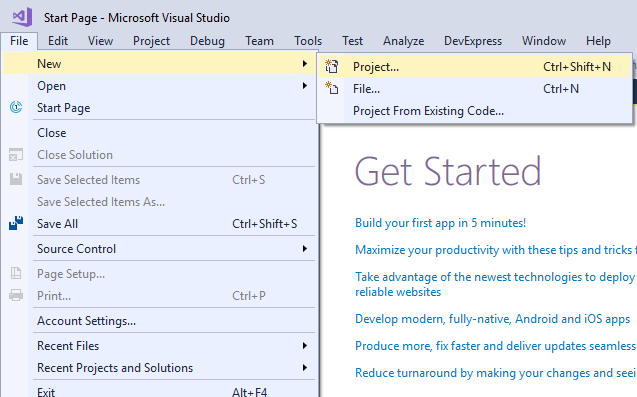
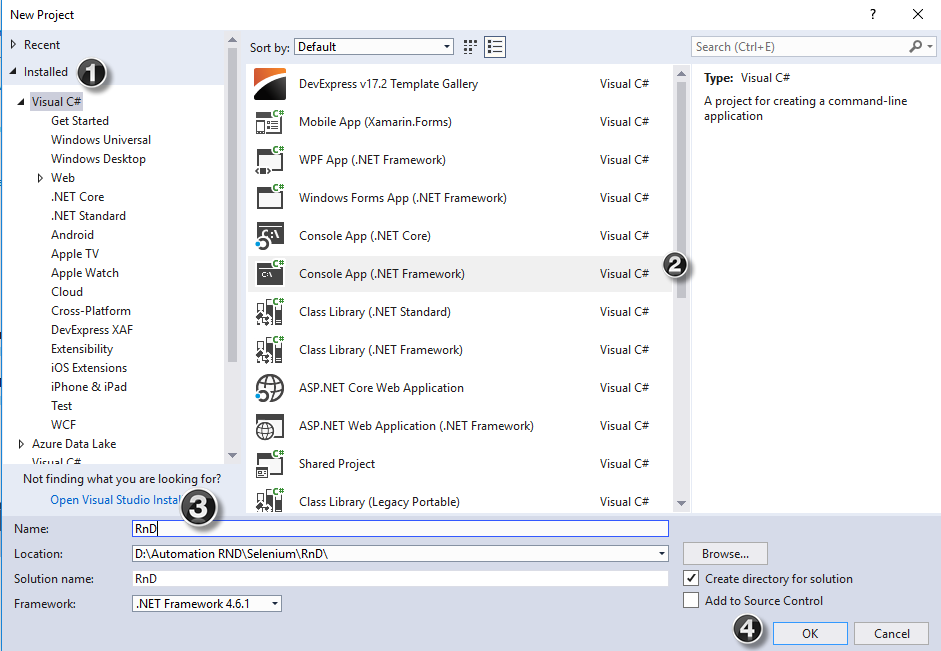
Create a new project in Visual Studio:

Step 1) In the File Menu, Click New > Project

Step 2) In the next screen

  1. Select the option ‘Visual C#’
  2. Click on Console App (.Net Framework)
  3. Enter name as “RnD”
  4. Click OK

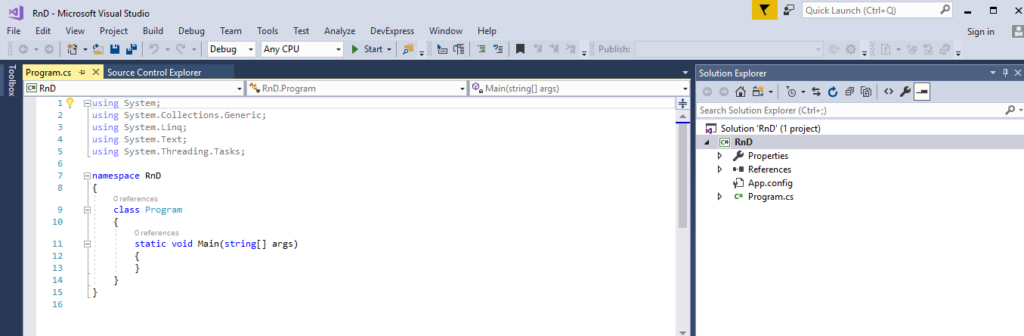
Step 3) The below screen will be displayed once the project is successfully created.

Set up Visual Studio with Selenium WebDriver:

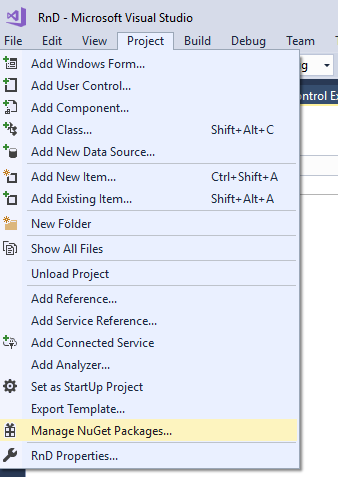
Step 1) Navigate to Project-> Manage NuGet Packages

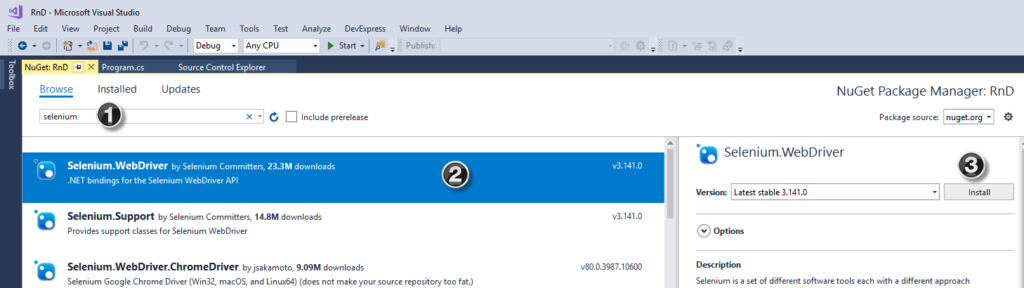
Step 2) In the next screen

  1. Search for Selenium on the resultant screen
  2. Select the first search result
  3. Click on ‘Install’

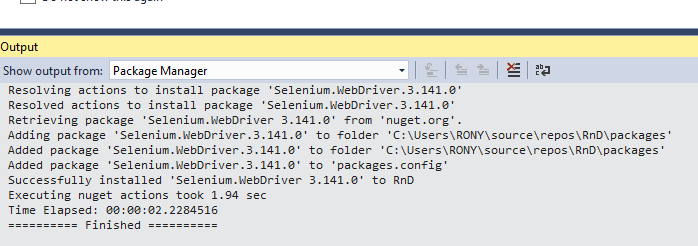
Step 3) The below message will be displayed once the package is successfully installed

Steps to install NUnit Framework:

Step 1) Navigate to Project-> Manage NuGet Packages

Step 2) In the next window

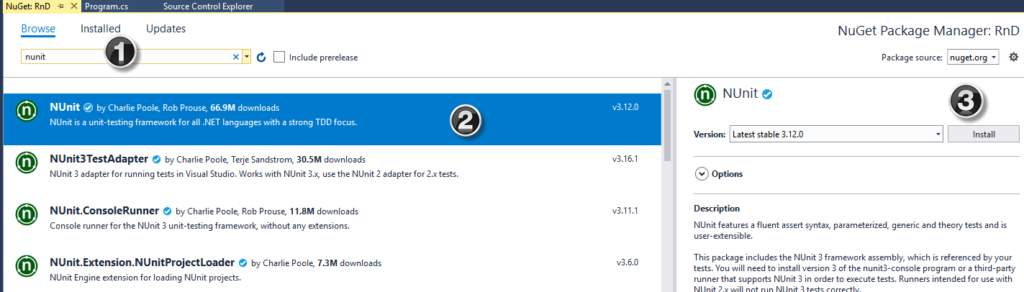
  1. Search for NUnit
  2. Select the search result
  3. Click Install

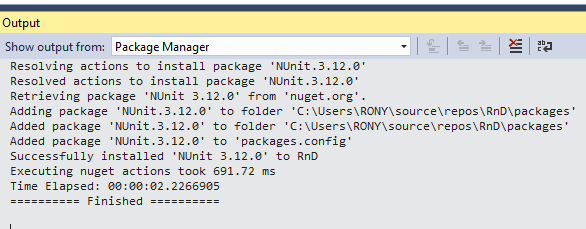
Step 3) The below message will appear once the installation is complete.

Steps to download NUnit Test Adapter

Please note that the below steps work only for 32-bit machines. For 64-bit machines, you need to download the ‘NUnit3 Test Adapter’ by following the same process as mentioned below.

Step 1) Navigate to Project-> Manage NuGet Packages

Step 2) In the next window

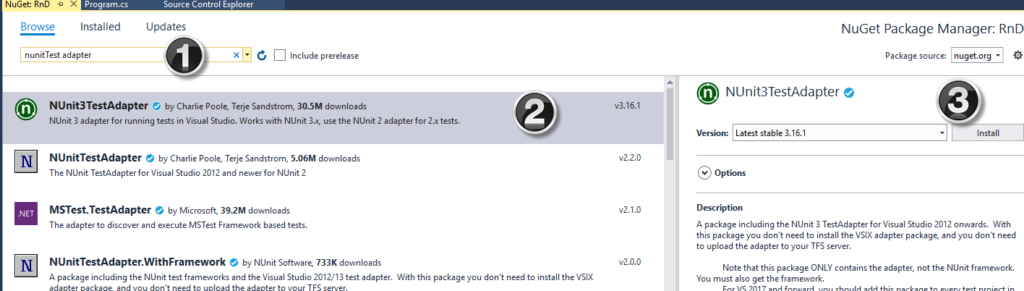
  1. Search NUnitTestAdapter
  2. Click Search Result
  3. Click Install

Step 3) Once install is done you will see the following message

Steps to download Chrome Driver

Step 1) Navigate to Project-> Manage NuGet Packages

Step 2) In the next window

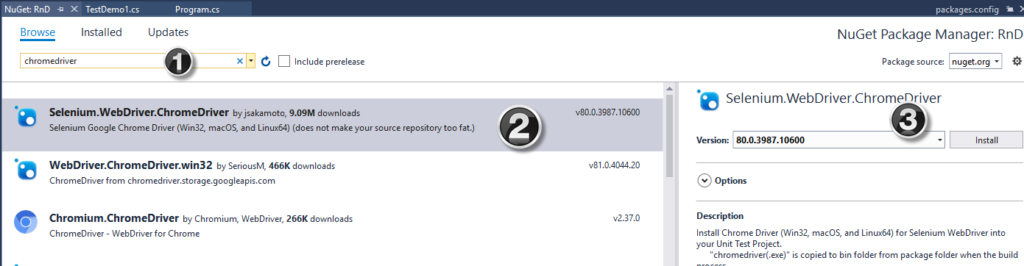
  1. Search for Chromdriver
  2. Select the search result
  3. Click Install

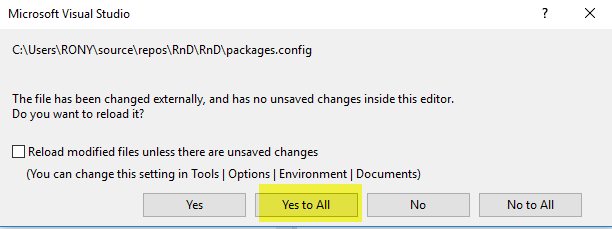
Step 3) System may asked for permission. Click on ‘Yes to All’

Step 4) The below message will appear once the installation is complete.

Selenium and NUnit framework:

Selenium with NUnit framework allows differentiating between various test classes. NUnit also allows using annotations such as SetUp, Test, and TearDown to perform actions before and after running the test.

NUnit framework can be integrated with Selenium by creating a NUnit test class and running the test class using NUnit framework.

The below are the steps needed to create and run a test class using NUnit framework.

Steps to create a NUnit Test class in Selenium:

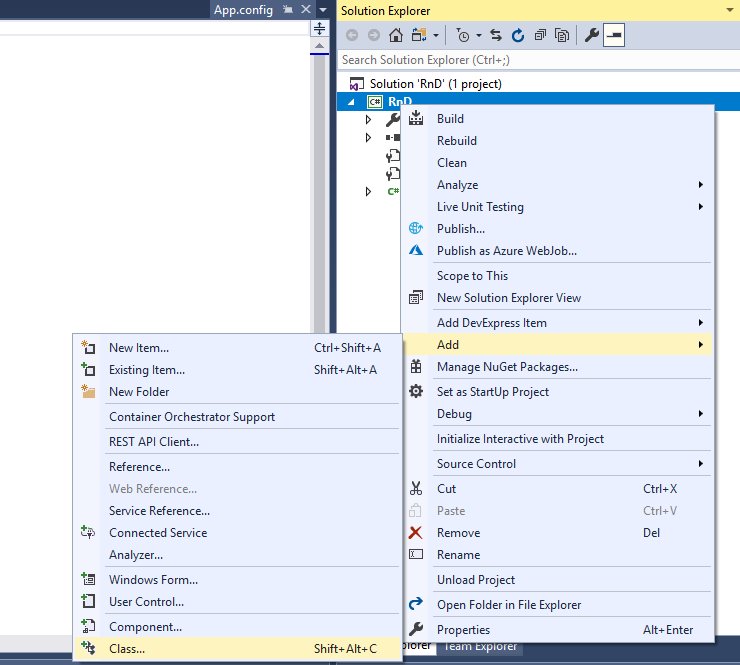
Step 1) In the Solution Explorer, Right clicked on project > Add > Class

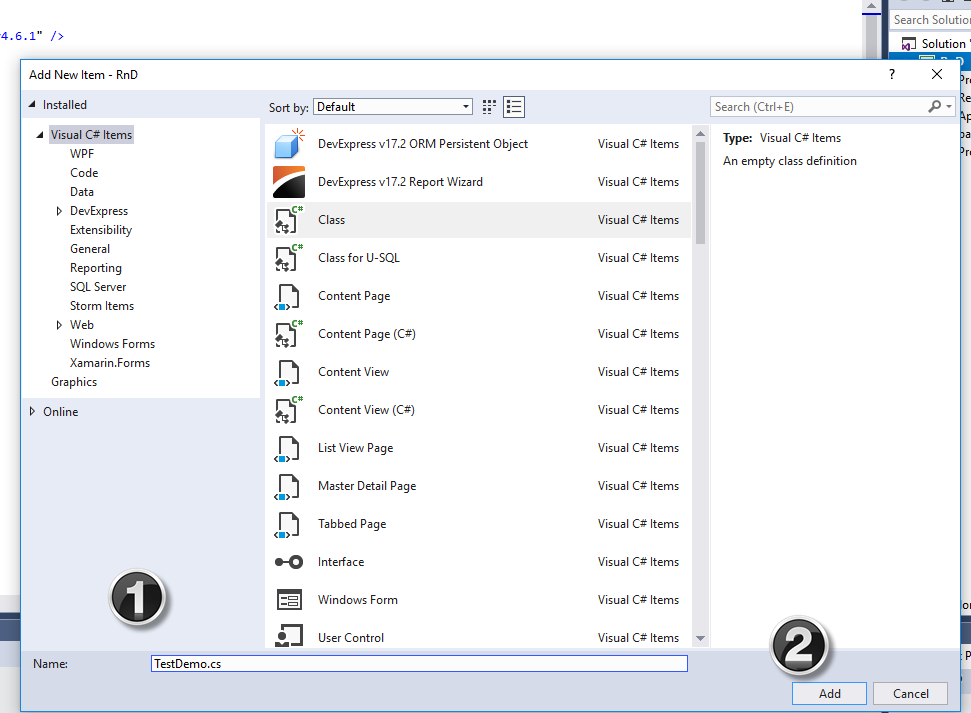
Step 2) Class creation window will appear

  1. Provide a name to the class
  2. Click on Add button

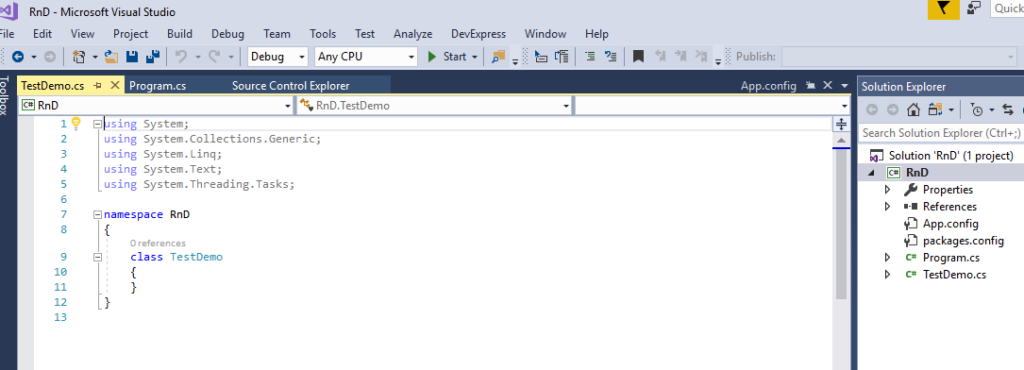
Step 3) The below screen will appear.

Step 4) Add the following code to the created class. Please note that you need to specify the location of ‘chromdriver.exe’ file during chrome driver initialization.

using System;
using System.Collections.Generic;
using System.Linq;
using System.Text;
using System.Threading.Tasks;

using OpenQA.Selenium;
using OpenQA.Selenium.Support.UI;
using OpenQA.Selenium.Chrome;


using NUnit.Framework;
using NUnit.Framework.Interfaces;
using NUnit;

namespace RnD
{
    [TestFixture]
    public class TestDemo1
    {
        public IWebDriver driver;

        [SetUp]
        public void Initialize()
        {
            driver = new ChromeDriver();
        }

        [Test]
        public void BrowserTest()
        {
            driver.Manage().Window.Maximize();
            driver.Navigate().GoToUrl("https://www.google.com/");
        }

        [TearDown]
        public void closeBrowser()
        {
            driver.Close();
        }
    }
}

Step 4) Click on ‘Build’ -> ‘Build Solution’ or keypress ‘Ctrl + Shift + B’

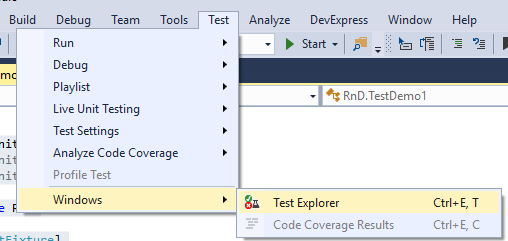
Step 5) Once the build is successful, we need to open the Test Explorer window. Click on Test -> Windows -> Test Explorer

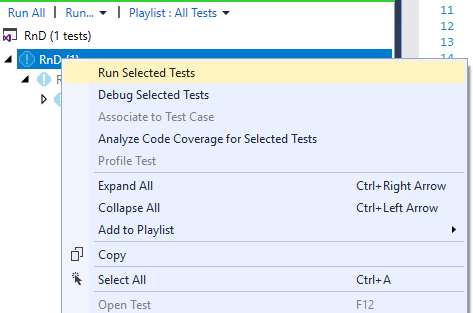
Step 6) Test Explorer window opens with the list of available tests. Right-click on Test Explorer and select Run Selected Tests

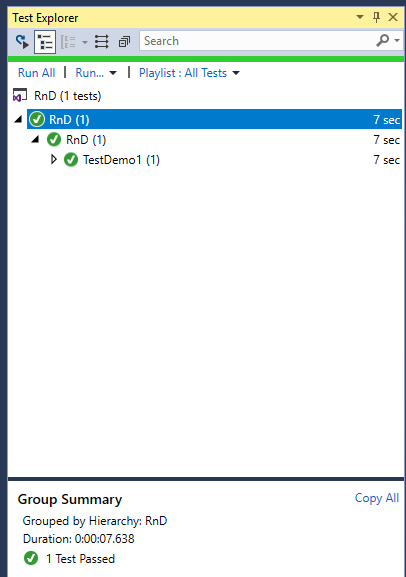
Step 7) Selenium must open the browser with specified URL and close the browser. Test case status will be changed to ‘Pass’ on the Test Explorer window.