Complete Mobile Testing Checklist for Android and iOS Apps

Platform

  • Check OS depend on test
  • Check many OS’s we will support (Android / iOS / Windows Phone)?
  • What mobile / tablet device will be used?
  • What mobile / tablet screen size (Inch: 10 / 8)?
  • What will be happened if OS updated?

Device-Specific Features

  • Content – Text size, Content adjustment, Responsive design
  • UI- Touchscreen gestures- swipe, zoom, pinch, multi-touch, shake
  • Pre-install software (Such as for export or import file)?
  • Check if battery down
  • Check making/Receiving voice calls while the app is running
  • Check memory utilise overflow
  • Check resuming App from the same point as left at the time of switching to another app
  • Check data will be saved (SD card / internal memory)
  • Check happened if memory (SD card / internal memory) full and try to export
  • Check in portrait / landscape mode?
  • Check application for empty / large database
  • Check screen off / screen saver off.
  • What are difference real device and emulator?
  • Check minimise app while loading shows

Connectivity and Network Issues

  • Check data connection will be used (Mobile operator / wifi)
  • Check if data connection loss while saving data
  • Check if data connection slow while saving data
  • Check both connection are open; Now, lost wifi connection what will be happen; Vice versa
  • Check both connection are open; Now, slow wifi connection what will be happen; Vice versa
  • Check shows error message if connection failed
  • Check app bandwidth consumption

User Experenice

User Experience

  • Check app logo
  • Check menu logo
  • Check list page are searchable
  • Check list page are sortable
  • Check list page are filterable
  • Check screen resolution?
  • Check how many columns will display in list / details page?
  • Check able to export from list page?
  • Check able to print from list/ details page?
  • Check able to create design custom forms details page?
  • Check able to fill up fields in details page?
  • Check able to click button in list /details page?
  • Check navigation across different screen
  • Check responsiveness of the App Logo and Name
  • Check easy navigation across different screens
  • Check responsiveness of drop down lists
  • Check prompt display of errors and warning messages
  • Check spelling, typo and grammar in all kind of messages and labels
  • Check inactive buttons and active buttons
  • Check date format or date picker
  • Check amount with rounding figure
  • Check currency format
  • Check text field format
  • Check number key pad when number text field
  • Check auto save available
  • Check delete feature
  • Check Custom name feature or behaviour
  • Check sent email from on screen
  • Check description field enough space to enter data
  • Check easy way to ‘collapse or expand’ all data
  • Check all select feature in list page
  • Check user profile settings
  • Check notification feature available (Such as if new project add, delete or modified notification)
  • Check app version

Data Testing

  • Data Sync issue (If data added from mobile app but not showing in web app. Vice versa)
  • API testing
  • Check image / document upload and limitation
  • Check document / image view feature
  • Check list page data count shows or not
  • Check server down time
  • Check xero/ other third party software data sync (if applicable)
  • Check CRUD operation
  • Check concurrency message
  • Check will data save offline mode
  • Check data create/update/delete in offline but what will be happened when its in online
  • Check previous data access cache

Security Testing

  • Check login credential attach with mobile fingerprint
  • Check ‘Remmber me’ feature in login
  • Check app sign out / Sign in feature
  • Check cache clear and run application again
  • Check user logged in but inactive / locked from admin
  • Check non admin user logged in what data s/he can access
  • Check customer’s data security
  • Check customer payment data security
  • Check network protocols security for running application
  • Check user security policy
  • Check one user can see another user data or information
  • Check antivirus related issue

Performance Issue

  • Check time taken to launch the application
  • Check application performance at times of peak load conditions and continual key pad entry
  • Check splash performance check and ensuring it remains on screen for less than 1~2 seconds
  • Check application performance in low device battery and charging conditions
  • Check Integration with the device and other applications without hampering performance
  • Check application install/uninstall successfully within the desired timeframe
  • Check displaying error messages and exits gracefully at times of low memory issues
  • Check app performance at the time of a Network problem and error alert prompts
  • Check application performance when the Network is back in action
  • Check memory Consumption
  • Check hardware Utilisation
  • Check app behaviour if app crashed
  • Check device performance
  • Check server performance
  • Check network performance
  • Check Install or update app feature
  • Check OS based app limitation

Feedback Feature

  • Check ‘Contact Us’ feature
  • Check help guide available
  • Check legal feature available (Such as ‘Term and condition’ and ‘Privacy Policy’)
When search value in all tables under a database

Ever needed to find where a specific value is stored in your SQL Server database? This post shows how to search all tables and columns using a dynamic SQL query. It’s a powerful technique for DBAs and developers working with large or unfamiliar databases. Whether you’re debugging, tracking data issues, or reverse-engineering legacy systems, this method will save you time by scanning your entire database for the value you’re looking for.

If someone wants to search by specific value in database, it’s difficult to search a value whole database. Below code easy way to find out

DECLARE @SearchStr nvarchar(100)
SET @SearchStr = 'test@test.com.au'
 
CREATE TABLE #Output (TableLocation nvarchar(370), Details_Information nvarchar(3630))
 
SET NOCOUNT ON
 
DECLARE @SearchTableName nvarchar(256), @ColumnName nvarchar(128), @SearchStr2 nvarchar(110)
SET  @SearchTableName = ''
SET @SearchStr2 = QUOTENAME('%' + @SearchStr + '%','''')
 
WHILE @SearchTableName IS NOT NULL
 
BEGIN
    SET @ColumnName = ''
    SET @SearchTableName = 
    (
        SELECT MIN(QUOTENAME(TABLE_SCHEMA) + '.' + QUOTENAME(TABLE_NAME))
        FROM     INFORMATION_SCHEMA.TABLES
        WHERE         TABLE_TYPE = 'BASE TABLE'
            AND    QUOTENAME(TABLE_SCHEMA) + '.' + QUOTENAME(TABLE_NAME) > @SearchTableName
            AND    OBJECTPROPERTY(
                    OBJECT_ID(
                        QUOTENAME(TABLE_SCHEMA) + '.' + QUOTENAME(TABLE_NAME)
                         ), 'IsMSShipped'
                           ) = 0
    )
 
    WHILE (@SearchTableName IS NOT NULL) AND (@ColumnName IS NOT NULL)
         
    BEGIN
        SET @ColumnName =
        (
            SELECT MIN(QUOTENAME(COLUMN_NAME))
            FROM     INFORMATION_SCHEMA.COLUMNS
            WHERE         TABLE_SCHEMA    = PARSENAME(@SearchTableName, 2)
                AND    TABLE_NAME    = PARSENAME(@SearchTableName, 1)
                AND    DATA_TYPE IN ('char', 'varchar', 'nchar', 'nvarchar', 'int', 'decimal')
                AND    QUOTENAME(COLUMN_NAME) > @ColumnName
        )
 
        IF @ColumnName IS NOT NULL
         
        BEGIN
            INSERT INTO #Output
            EXEC
            (
                'SELECT ''' + @SearchTableName + '.' + @ColumnName + ''', LEFT(' + @ColumnName + ', 3630) FROM ' + @SearchTableName + ' (NOLOCK) ' +
                ' WHERE ' + @ColumnName + ' LIKE ' + @SearchStr2
            )
        END
    END   
END
 
SELECT TableLocation, Details_Information FROM #Output
 
DROP TABLE #Output

When You Skip QA: Why Testing Before Deployment Matters

Introduction

Have you ever heard the phrase “Don’t test in production”? Well, there’s a reason why tech teams take that seriously—because skipping Quality Assurance (QA) can lead to disasters. Imagine releasing a new app feature or website update and suddenly everything breaks. That’s what happens when we skip testing.

In this post, we’ll break down what QA means, why it’s important, and what could go wrong if you skip it — even for small changes.


What Is QA in Software?

Quality Assurance (QA) is the process of testing software before it reaches the end-users. The goal is to catch bugs, errors, or usability issues early so that customers never see them.

QA includes:

  • Functional Testing (Does it work as expected?)
  • Performance Testing (Is it fast and stable?)
  • Usability Testing (Is it easy to use?)
  • Security Testing (Is it safe from hackers?)

Why Skipping QA Is a Bad Idea

Let’s say a developer builds a feature and clicks “Deploy” without any testing. Everything seems fine at first… until:

  • 🔥 Servers crash under load
  • ❌ Users can’t log in
  • 🧾 Orders don’t go through
  • 📉 Customer trust is lost

In worst cases, companies lose money, users leave, or sensitive data leaks — all because someone skipped a few checks.


Real-Life Example

Let’s look at a simple scenario.

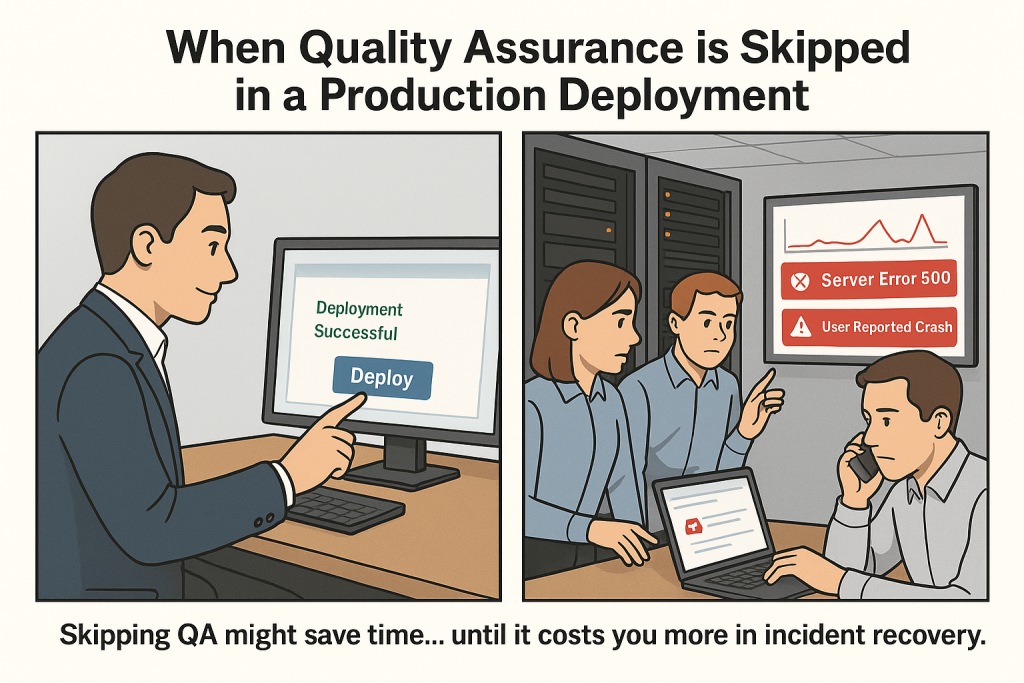
  1. A developer drinks coffee, feeling confident, and presses “Deploy” without testing.
  2. Within minutes, customers start complaining.
  3. Servers overheat, users panic, and the whole team scrambles to fix things.

All this could have been avoided with just one round of QA testing.


Easy Ways to Add QA to Your Workflow

Even if you’re a solo developer or part of a small team, here are simple ways to avoid disaster:

  1. Test Locally: Run the app on your computer and try different features.
  2. 🧪 Use Test Cases: Write down steps to test specific functions.
  3. 🧑‍🤝‍🧑 Get Peer Review: Ask a teammate to try the app before pushing.
  4. 🔁 Automated Testing: Use tools like Selenium, Playwright, or Jest to run tests automatically.
  5. 🌐 Have a Staging Environment: Test your app in a separate place that simulates production before going live.

The Takeaway

Skipping QA might feel like you’re saving time, but in the long run, it often leads to chaos, customer frustration, and emergency fixes. Just like you wouldn’t serve food without tasting it, don’t launch software without testing it.

So next time, before you press “Deploy,” ask yourself:
“Did I test this properly?”


Final Tip 🧠

If you’re just getting started, begin with manual testing — try using your app like a real user would. Over time, explore tools that automate repetitive tests. Even basic testing goes a long way!

How to View Restore History in SQL Server (With Query Examples)

SELECT [rs].[destination_database_name],
[rs].[restore_date],
[bs].[backup_start_date],
[bs].[backup_finish_date],
[bs].[database_name] as [source_database_name],
[bmf].[physical_device_name] as [backup_file_used_for_restore]
FROM msdb..restorehistory rs
INNER JOIN msdb..backupset bs
ON [rs].[backup_set_id] = [bs].[backup_set_id]
INNER JOIN msdb..backupmediafamily bmf
ON [bs].[media_set_id] = [bmf].[media_set_id]
ORDER BY [rs].[restore_date] DESC

How to read a CSV file and store the values into an array in C#?

A CSV file is a comma-separated file, that is used to store data in an organized way.

Data.csv
A,B,C

Example

using System;
using System.IO;
using System.Collections.Generic;

   class Program
    {
        public static void Main()
        {
            string FilePath = @"C:\Sample\Data.csv";

            StreamReader reader = null;

            if (File.Exists(FilePath))
            {
                reader = new StreamReader(File.OpenRead(FilePath));

                List<string> listData = new List<string>();

                while (!reader.EndOfStream)
                {
                    var line = reader.ReadLine();

                    var values = line.Split(',');

                    foreach (var item in values)
                    {

                        listData.Add(item);

                    }
                    foreach (var row1 in listData)
                    {

                        Console.WriteLine(row1);

                    }
                }
            }
            else
            {
                Console.WriteLine("File doesn't exist");
            }
            Console.ReadLine();
        }
    }

Output

A
B
C

How to clear database log write script in MS SQL Server

1. Open SQL Query
2. Type below script (Assuming Database name ‘SampleDB’)
USE [SampleDB];
GO
— Truncate the log by changing the database recovery model to SIMPLE.
ALTER DATABASE [SampleDB]
SET RECOVERY SIMPLE;
GO
— Shrink the truncated log file to 1 MB.
DBCC SHRINKFILE (‘SampleDB_log’, 1);
GO
— Reset the database recovery model.
ALTER DATABASE [SampleDB]
SET RECOVERY FULL;
GO

How to check how many users are connected to a SQL Server

You can retrieve information about the number of connected users to a SQL Server. It is also possible to check which users are connected to a particular database.

Few examples in below:

Example 1: To check all users and process connection


select @@servername as server, count(distinct usr) as users, count(*) as processes from

( select sp.loginame as usr, sd.name as db

 from sysprocesses sp join sysdatabases sd on sp.dbid = sd.dbid ) as db_usage

Example 2: To check individual users and process connection

select Users, count(distinct db) as Databases, count(*) as processes from

( select sp.loginame as Users, sd.name as db

 from sysprocesses sp join sysdatabases sd on sp.dbid = sd.dbid ) as db_usage

group by Users

order by Users

Example 3: To check database, user and process connections

select db, users, count(*) as processes from

( select sp.loginame as users, sd.name as db

 from sysprocesses sp join sysdatabases sd on sp.dbid = sd.dbid ) as db_usage

where db like('%')

group by db, users

order by db, users

Database to Single-user Mode in MS SQL Server 2008

Today I will discussed about, how to restrict access to single user.

Why need restrict access database?

* Single-user mode specifies that only one user at a time can access the database and is generally used for maintenance actions.

* When multiple users are connected to the database at the time that you set the database to single-user mode, their connections to the database will be closed without warning.

How to setup database to single user mode.

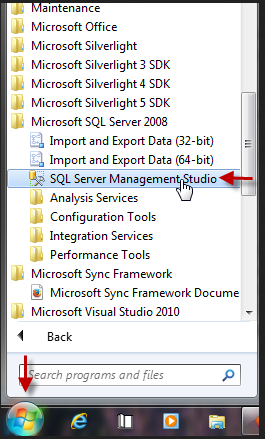
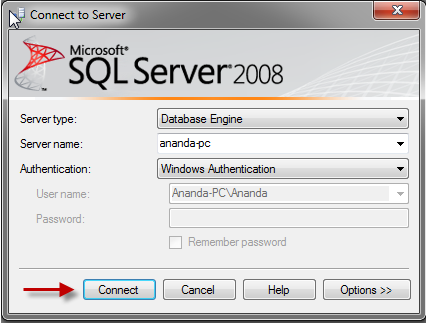
Step 1: Go to Start menu > All Programs > Microsoft SQL Server 2008 > SQL Server Management Studio and Connect to database server


Step 2: Right-click the database and click Properties.

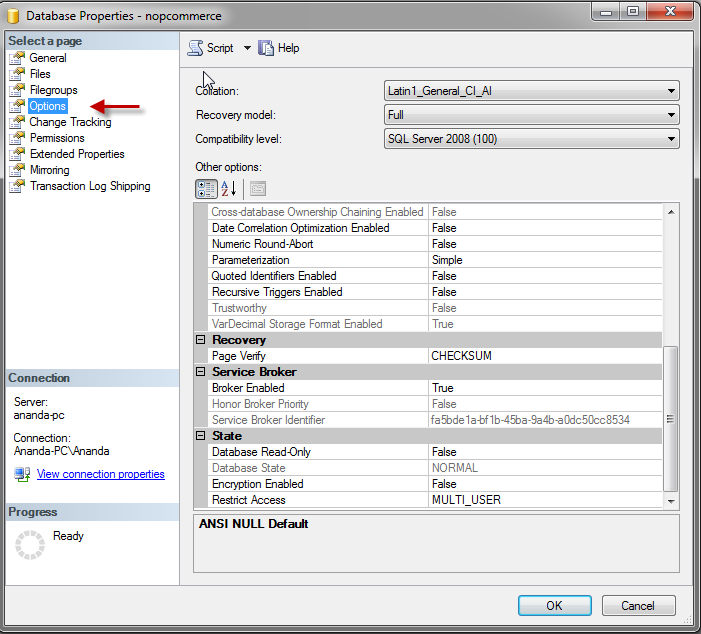
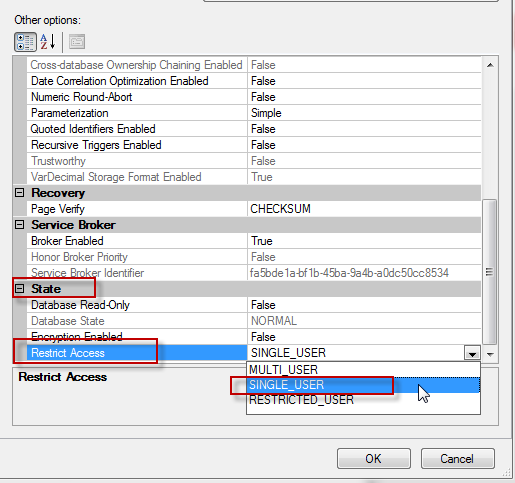
Step 3:  In Database Properties dialog box, click Options page from left menu.

Step 4: Select SINGLE_USER  from the Restrict Access option

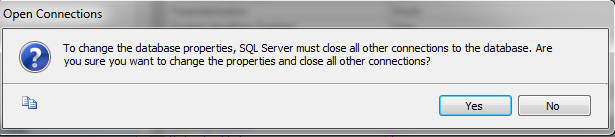
Step 5: If other users are connected to the database, an Open Connections message will appear. To change the property and close all other connections, click Yes.

How to setup selenium WebDriver with Nunit and Visual Studio (C#)

Selenium is an open source software tools which supporting tests automation. Now days, Software automation tools are becoming popular. Software automation tools are a time efficient. You will find different kinds of software automation tools, such as Load Runner, QTP, MS Test Manager, Jmeter etc. Selenium webdriver is a one of them. It is most popular automation tools.


Today, I am going to discussed about how to run selenium WebDriver with Nunit and Visual Studio (C#)


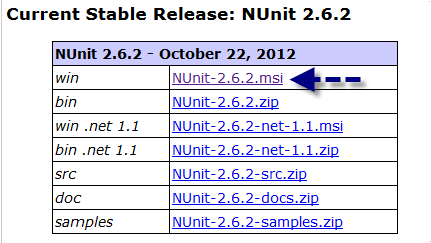
  • Download Nunit (http://www.nunit.org) and install in your system
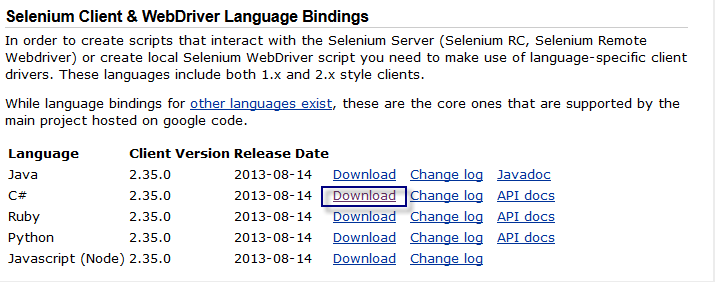
  • Download selenium web-driver (http://docs.seleniumhq.org/download)
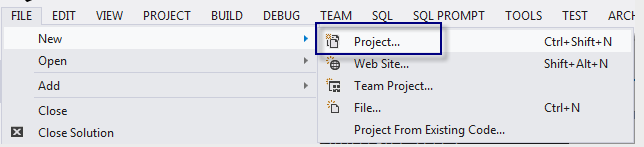
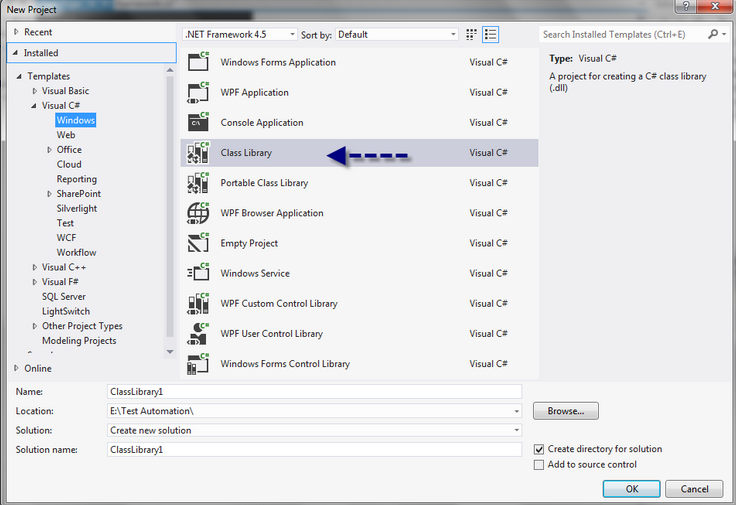
  • Open a new project and Create a Class Library
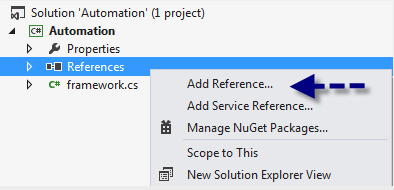
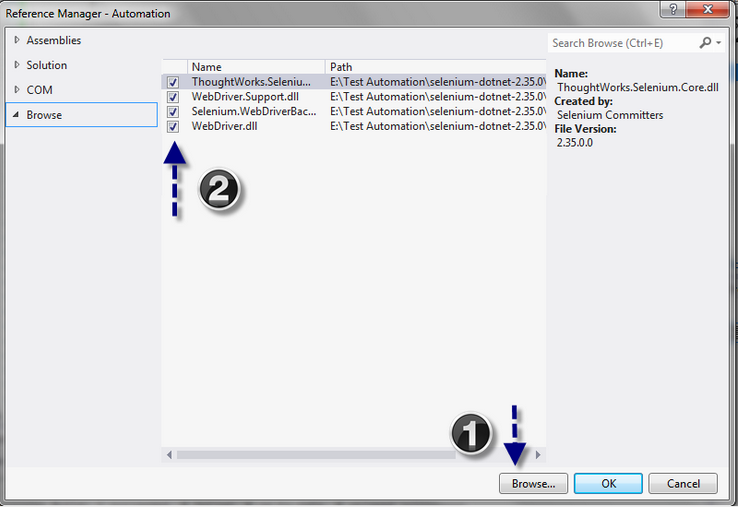
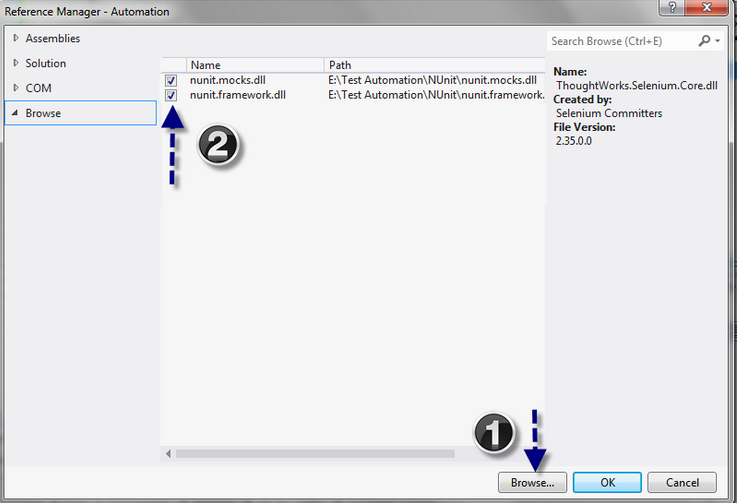
  • Add reference webdriver dll (selenium-dotnet-2.35.0 > net40) and nunit dll (Where you installed).

Webdriver dll

Nunit Dll

Or you can add Nunit dll from assemblies > Extension
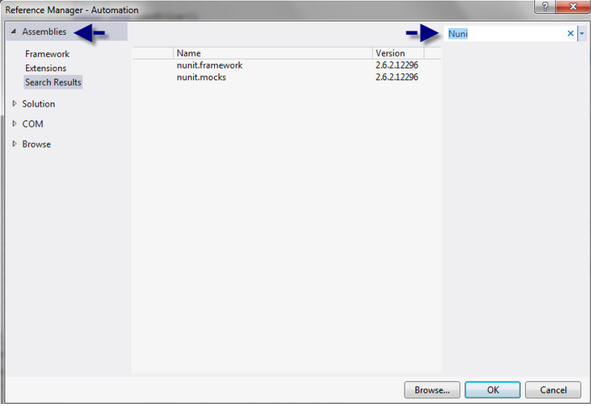
  • When all of this is done and you can start write a code

Point 1:

using System;

using System.Collections.Generic;

using System.Linq;

using System.Text;

using System.Threading.Tasks;

using NUnit.Framework;

using OpenQA.Selenium;

using OpenQA.Selenium.Firefox;

using OpenQA.Selenium.Internal;

using OpenQA.Selenium.Support.UI;


Point 2:

namespace Automation

{
[TestFixture]
public class framework
{
private IWebDriver driver;
[SetUp]

public void LoadDriver()
{
Console.WriteLine("Check SetUp");
driver = new FirefoxDriver();
// To Maximise browser
 driver.Manage().Window.Maximize();
}

[Test]
public void Login()
{
driver.Navigate().GoToUrl("http://localhost/nopcommerce/login");
Console.WriteLine("Check URL");

// Type UserName
driver.FindElement(By.Id("Email")).SendKeys("admin@yourStore.com");

// Type Password
driver.FindElement(By.Id("Password")).SendKeys("admin");

// Clicked on Login Button
driver.FindElement(By.CssSelector("input.button-1.login-button")).Click();
}

[TearDown]
public void UnloadDriver()
{
Console.WriteLine("TearDown");
driver.Quit();
}
}
}

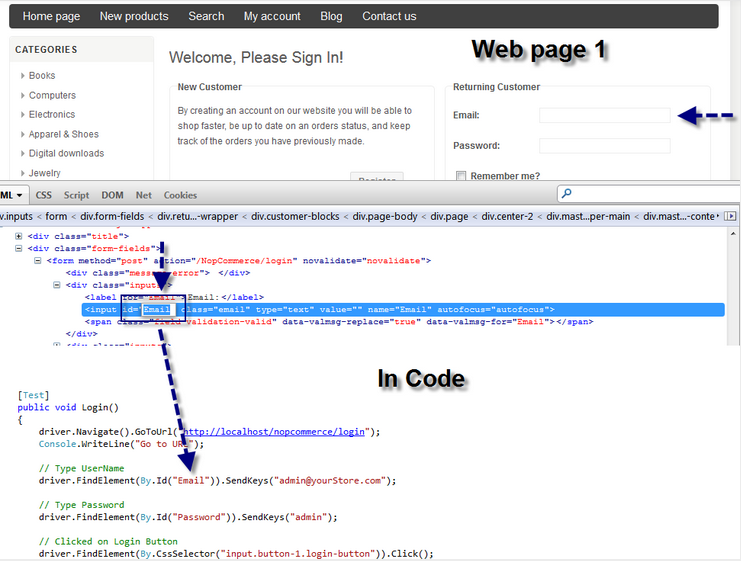
Above marked area. Just described how you will get id from login page

  • Build your application or press (Ctrl + Shift + B)
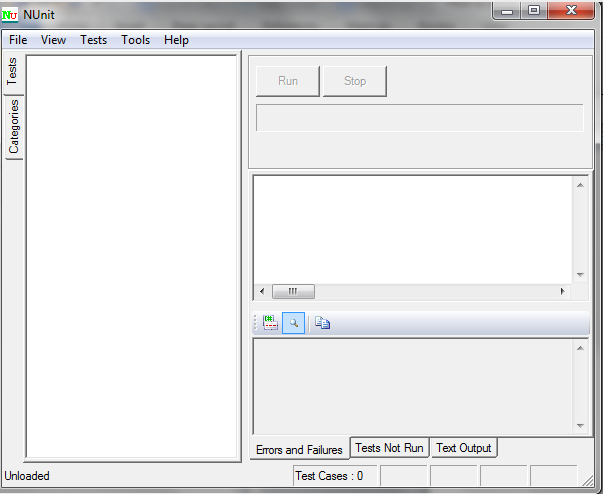
  • You have to run Nunit window to run this code.
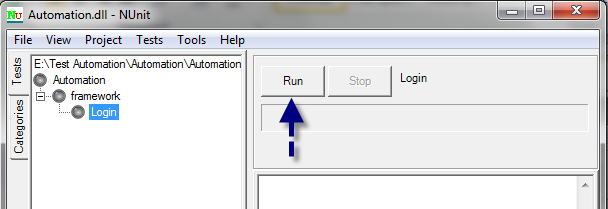
  • Now, open a project from file menu and choose the project dll file or you can drag and drop the dll.
  • Click on ‘Run’ button to define result pass / fail