If sendkeys() methods are not working then use following two ways to input text:
Before sendkeys() use click() method to click inside textfield i.e:

driver.findElement(By.name("mainphone")).click();
driver.findElement(By.name("mainphone")).sendKeys("(02)2222-2222");
driver.findElement(By.id("mobilephone")).click();
driver.findElement(By.id("mobilephone")).sendKeys("05-5555-5555");
🧠 Top Skills That Are Important for a Test Professional in 2025
Software testing has transformed rapidly with the rise of automation, agile, AI, and complex digital ecosystems. A test professional today is no longer limited to clicking through test cases—they are expected to be problem solvers, communicators, coders, and sometimes even data analysts.
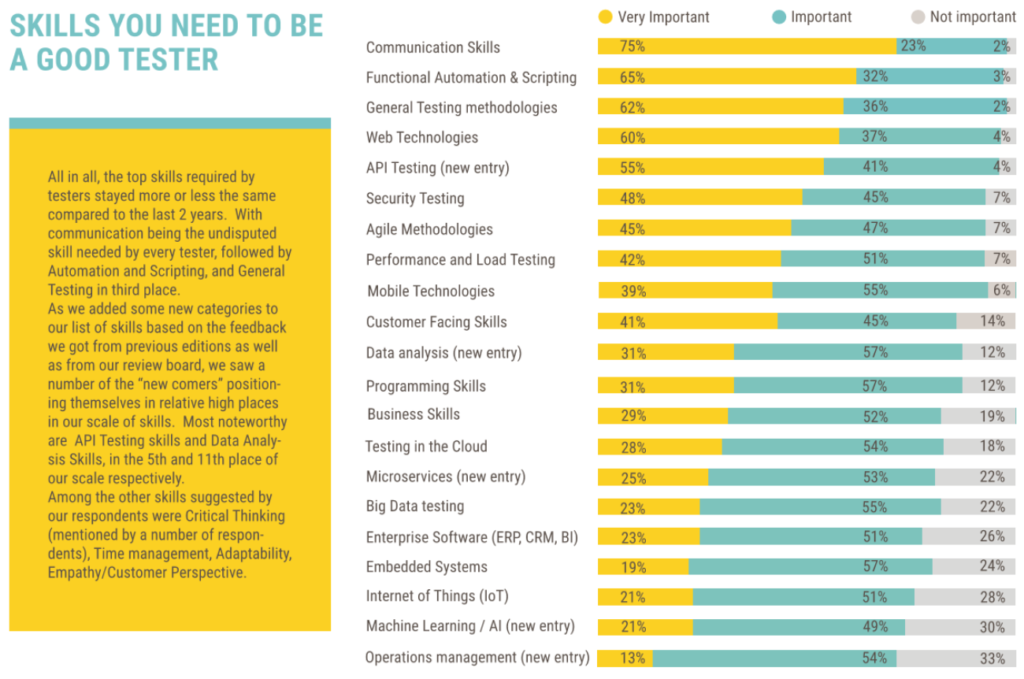
The infographic below shows a breakdown of the most critical testing skills, based on industry-wide feedback.
📌 Why These Skills Matter
With constant software releases, test professionals need to ensure quality without slowing down development. That means:
Faster feedback loops
Deeper collaboration with developers
Testing beyond just functionality (security, usability, performance)
Understanding user behavior and business context
These skills help testers not just find bugs—but prevent them.
📊 Top Skills Breakdown
Here’s a detailed look at what each skill means and why it matters:
1. 🗣️ Communication Skills (75% Very Important)
📍 Why it’s critical: Testers must clearly document bugs, write test cases, and explain defects to developers and stakeholders. Good communication prevents misunderstandings and keeps the team aligned.
2. ⚙️ Automation & Scripting (65%)
📍 Why it’s critical: Manual testing can’t scale. Knowledge of automation frameworks like Selenium, Cypress, or Playwright is essential. Scripting in languages like Python, Java, or JavaScript can save hours of repetitive work.
3. 📚 General Testing Methodologies (62%)
📍 Why it’s critical: Understanding black-box, white-box, regression, smoke, and exploratory testing helps testers select the right test at the right time.
4. 🌐 Web Technologies (60%)
📍 Why it’s critical: Modern testers must understand HTML, CSS, and JavaScript to validate front-end issues or debug problems in browser-based apps.
5. 🔌 API Testing (55%)
📍 Why it’s critical: More apps rely on microservices and APIs. Testers need tools like Postman, REST Assured, or Karate to test APIs for performance, reliability, and correctness.
6. 🛡️ Security Testing (48%)
📍 Why it’s critical: Testers play a role in identifying vulnerabilities—such as XSS, injection attacks, or broken authentication—before attackers do.
7. 🔁 Agile Methodologies (45%)
📍 Why it’s critical: Testers in Agile teams need to test early and often, work in sprints, and use practices like TDD (Test-Driven Development) and CI/CD pipelines.
8. 📈 Performance & Load Testing (42%)
📍 Why it’s critical: Users expect fast apps. Testers use tools like JMeter, Gatling, or k6 to simulate thousands of users and ensure the app can handle peak loads.
9. 📱 Mobile Technologies (39%)
📍 Why it’s critical: Testing on Android and iOS requires mobile-specific knowledge (e.g., gestures, screen sizes, emulators, Appium automation).
10. 🧠 Customer-Facing & Business Skills
📍 Why it’s critical: Testers with empathy and business understanding catch real-world bugs—issues a user would actually care about.
🧩 Other Valuable (Emerging) Skills:
Skill
Use Case
Data Analysis
Understanding logs, charts, trends for performance and issue tracking
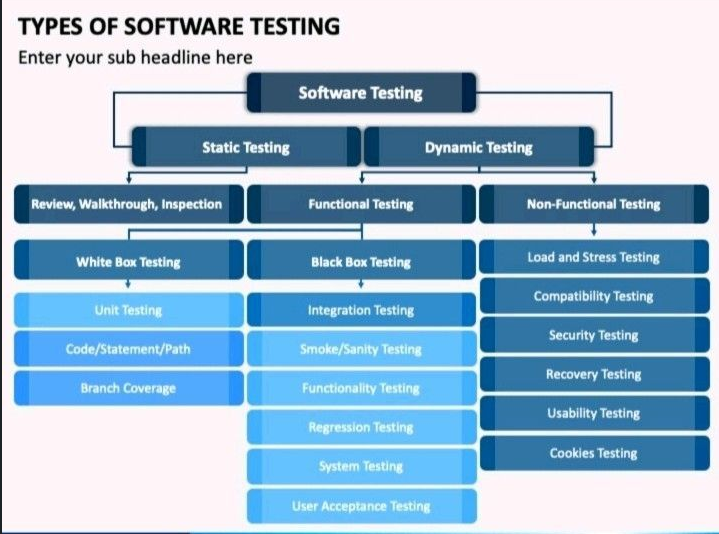
Software Testing is the process of evaluating a software application to ensure it works as expected, is secure, and performs well. It is broadly categorized into Static Testing and Dynamic Testing.
🔍 1. Static Testing
What it is: Testing the software without executing code. It’s done during the early stages of development.
Key methods:
Review
Walkthrough
Inspection
This helps find early-stage errors in requirements or design.
⚙️ 2. Dynamic Testing
What it is: Involves running the actual software and validating its behavior.
Two major branches: Functional & Non-Functional Testing
🔧 Functional Testing
Focuses on what the software does (its features and functions). It includes:
✅ White Box Testing
Tests internal code and logic. Done by developers.
Branch Coverage – Ensures each decision point (like if-else) is tested
✅ Black Box Testing
Focuses on inputs and outputs without knowing the internal code.
Integration Testing – Checks interactions between modules
Smoke/Sanity Testing – Basic checks after builds
Functionality Testing – Verifies features as per requirements
Regression Testing – Ensures old features work after changes
System Testing – Full end-to-end testing of the entire app
User Acceptance Testing (UAT) – Final testing by users before release
🧱 Non-Functional Testing
Tests how the software performs rather than what it does. Examples:
Load and Stress Testing – Tests system behavior under high load
Compatibility Testing – Ensures software works on different devices and platforms
Security Testing – Checks for vulnerabilities and data protection
Recovery Testing – Verifies how the app recovers from crashes
Usability Testing – Ensures app is user-friendly
Cookies Testing – Validates cookie creation, expiry, and behavior
✅ Final Thoughts
Using the right types of software testing helps teams build secure, fast, and high-quality software. Static and dynamic testing together cover both the visible functions and hidden logic of the system.
IoT Testing (Internet of Things Testing) is the process of testing the functionality, security, performance, and compatibility of IoT devices and systems. As more smart devices get connected—like smartwatches, home sensors, connected cars, and industrial machines—IoT Testing ensures everything works smoothly and safely.
When IoT devices fail, it can lead to real-world problems like security breaches, system crashes, or poor customer experiences. That’s why proper testing is critical before launching any IoT product.
🔍 Why is IoT Testing Important?
Imagine a smart home system where the thermostat, security cameras, and lights are all connected. If even one device malfunctions, the whole system could fail. IoT Testing helps developers find and fix issues before they reach real users.
🧰 Types of IoT Testing (Explained Simply)
Here are the main types of IoT Testing you should know:
1. ✅ Usability Testing
What it does: Checks if the IoT device is easy to use. Example: Is the mobile app for a smart bulb simple to navigate?
2. 🧩 Compatibility Testing
What it does: Makes sure the device works across different networks, platforms, and versions. Example: Can a smart fridge connect with both Android and iOS apps?
3. ⚙️ Reliability & Scalability Testing
What it does: Tests how stable the system is when more devices or users are added. Example: Will a smart sensor network still work if 100 more sensors are added?
4. 🔐 Security Testing
What it does: Validates if the system is safe from hackers and protects user data. Example: Can unauthorized users access your smart door lock?
5. 📈 Performance Testing
What it does: Checks how fast and responsive the devices are. Example: Does the smart thermostat respond quickly when you change the temperature?
6. 📊 Data Integrity Testing
What it does: Makes sure the data sent between devices is correct and uncorrupted. Example: If a heart monitor sends data to a doctor’s dashboard, is that data accurate?
🚀 Final Thoughts
IoT Testing ensures that smart devices are reliable, secure, and user-friendly before reaching the market. It helps avoid costly failures and builds trust with users. Whether you’re testing a smart appliance, industrial sensor, or wearable device—these testing types are essential for success in the IoT world.
Reports play a fundamental role when it comes to TESTING. Tester can now know the real-time reports of test suit execution. Reports made ease to know the ratio of Pass? Or Fail? Post-test suit execution and it is the only documentation to know about test execution results.
Everyone wish to see the detailed description of the test results. Don’t you? here is the solution for it. And, let us see how these reports can be achieved? in Selenium C# – NUnit framework automation testing.
To achieve detailed test execution results as HTML reports we need to rely on third party tool called => Extent Reports. These reports provide decent narration of test execution results and are depicted in PIE chart.
How to Reference Extent Reports in MS Visual Studio
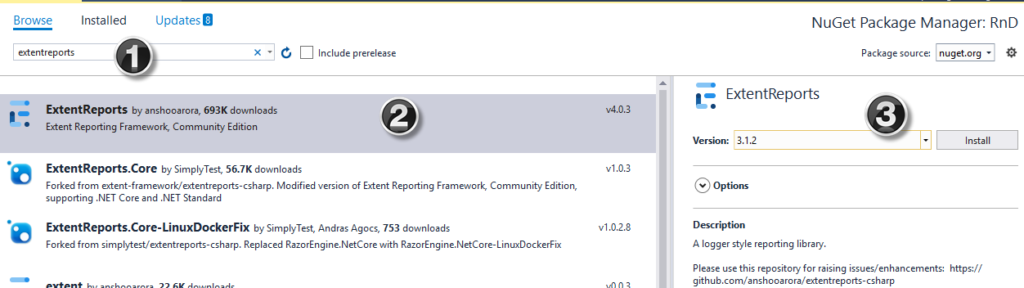
Extent Reports can be directly referenced via NuGet Gallery:
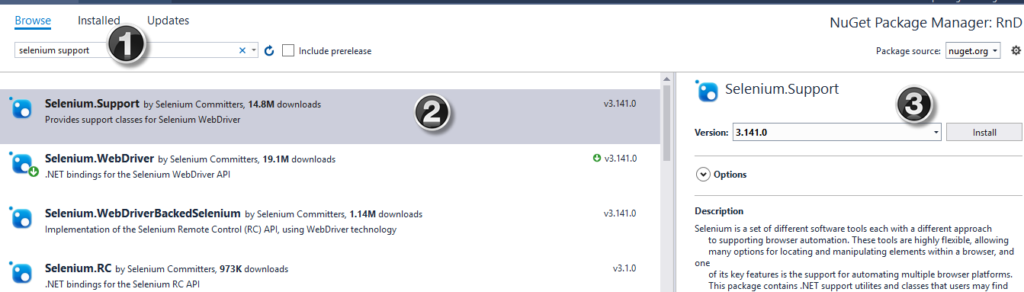
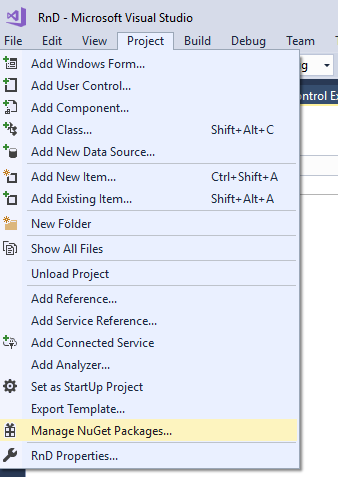
Step 1) Project> Manage NuGet Packages
Step 2) In the next window
Search for ExtentReports
Select the search result
Click Install
Step 3) Install selenium support from NuGet package
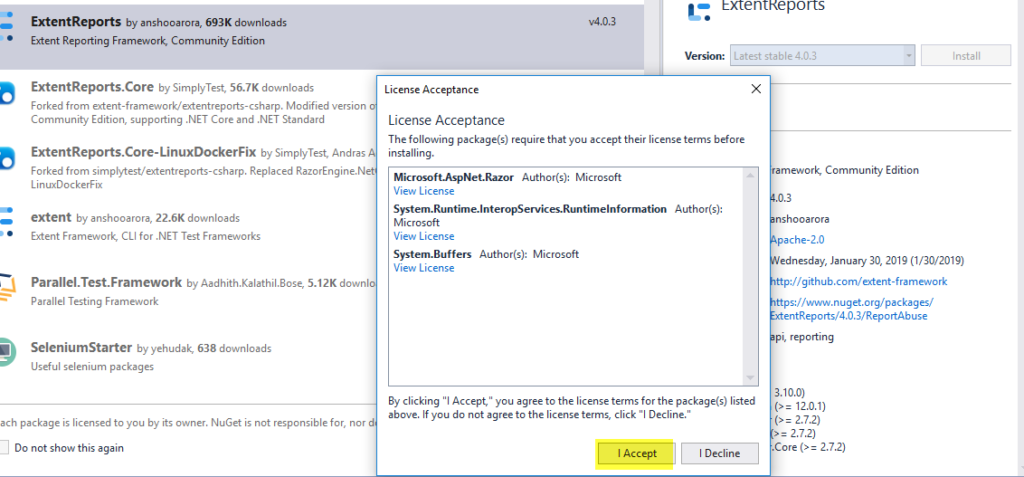
Step 3) Click ‘I Accept’
Step 4)Create a new C# class with the below code for Extent Reports.
using System;
using System.Collections.Generic;
using System.Linq;
using System.Text;
using System.Threading.Tasks;

using OpenQA.Selenium;
using OpenQA.Selenium.Support.UI;
using OpenQA.Selenium.Chrome;

using NUnit.Framework;
using NUnit.Framework.Interfaces;
using NUnit;

using AventStack.ExtentReports.Reporter;
using AventStack.ExtentReports;
using System.IO;

namespace RnD
{
    [TestFixture]
    public class TestDemo1
    {
        public IWebDriver driver;

        public static ExtentTest test;
        public static ExtentReports extent;

        [SetUp]
        public void Initialize()
        {
            driver = new ChromeDriver();
        }


        [OneTimeSetUp]
        public void ExtentStart()
        {

            extent = new ExtentReports();
            var htmlreporter = new ExtentHtmlReporter(@"D:\ReportResults\Report" + DateTime.Now.ToString("_MMddyyyy_hhmmtt") + ".html");
            extent.AttachReporter(htmlreporter);

        }


        [Test]
        public void BrowserTest()
        {
            test = null;
            test = extent.CreateTest("T001").Info("Login Test");

            driver.Manage().Window.Maximize();
            driver.Navigate().GoToUrl("http://testing-ground.scraping.pro/login");
            test.Log(Status.Info, "Go to URL");

            //provide username
            driver.FindElement(By.Id("usr")).SendKeys("admin");
            //provide password
            driver.FindElement(By.Id("pwd")).SendKeys("12345");

            try
            {
                WebDriverWait wait = new WebDriverWait(driver, TimeSpan.FromSeconds(1));
                wait.Until(ExpectedConditions.ElementIsVisible(By.XPath("//h3[contains(.,'WELCOME :)')]")));
                //Test Result
                test.Log(Status.Pass, "Test Pass");

            }

            catch (Exception e)

            {
                test.Log(Status.Fail, "Test Fail");
                throw;

            }
        }

        [TearDown]
        public void closeBrowser()
        {
            driver.Close();
        }

        [OneTimeTearDown]
        public void ExtentClose()
        {
            extent.Flush();
        }
    }
}
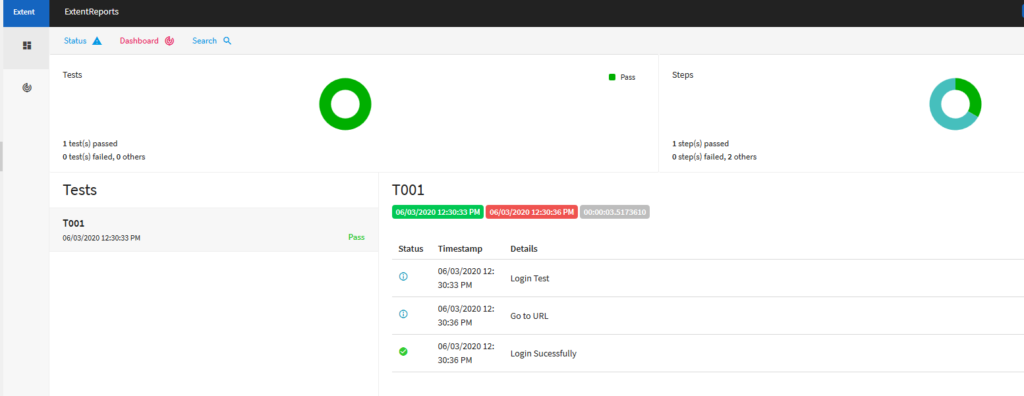
Post running test method, the test execution report looks as shown below:
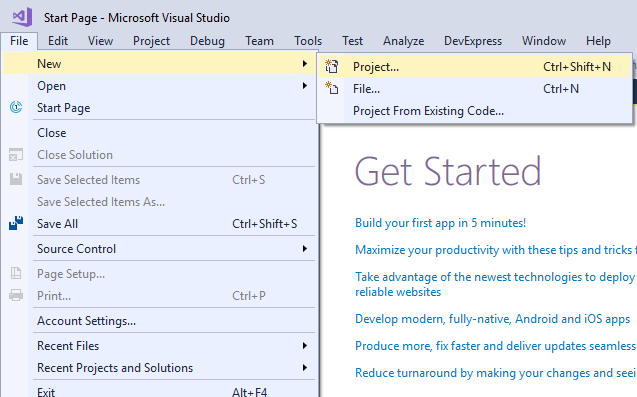
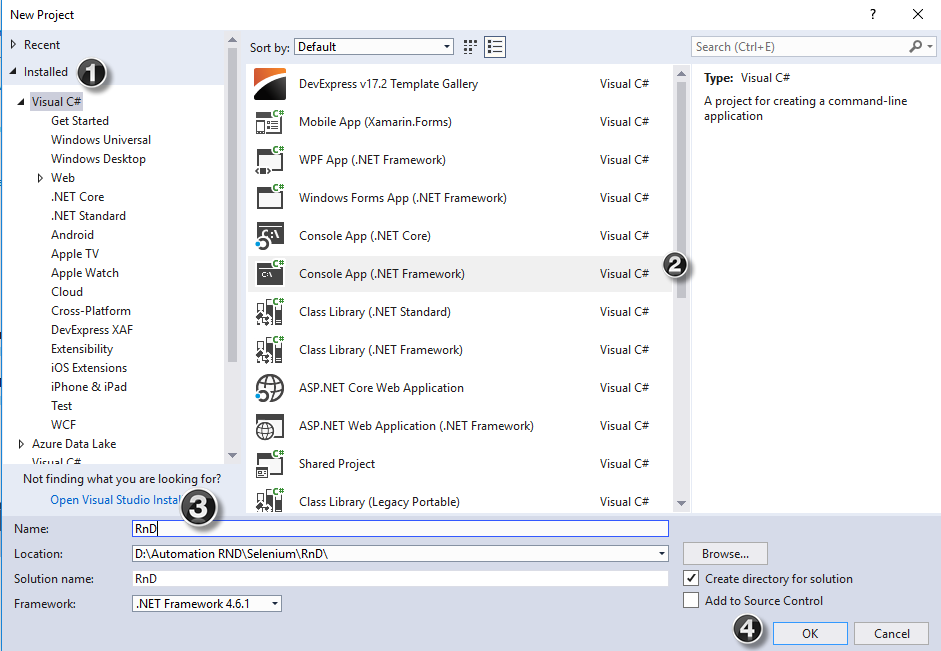
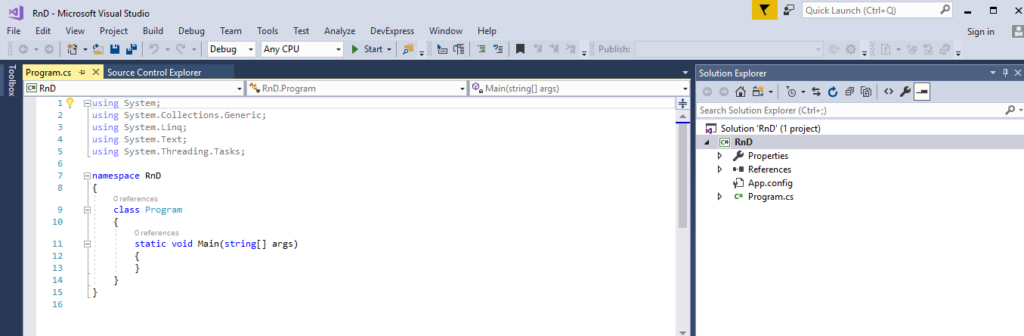
Step 3) The below screen will be displayed once the project is successfully created.
Set up Visual Studio with Selenium WebDriver:
Step 1) Navigate to Project-> Manage NuGet Packages
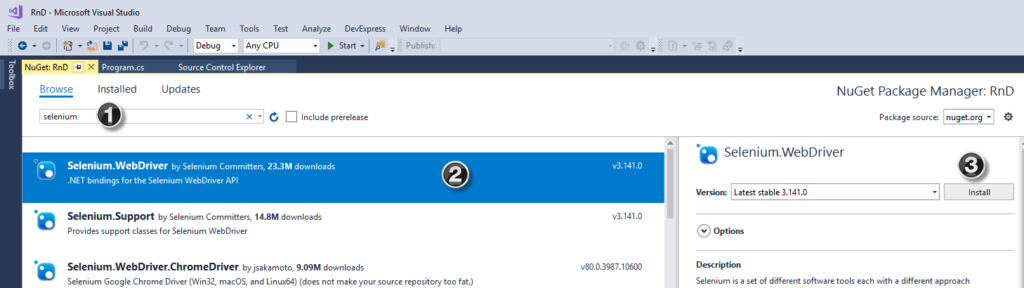
Step 2) In the next screen
Search for Selenium on the resultant screen
Select the first search result
Click on ‘Install’
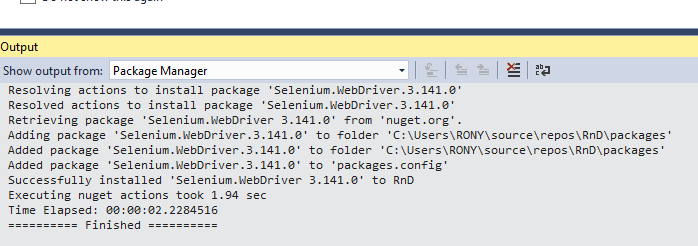
Step 3) The below message will be displayed once the package is successfully installed
Steps to install NUnit Framework:
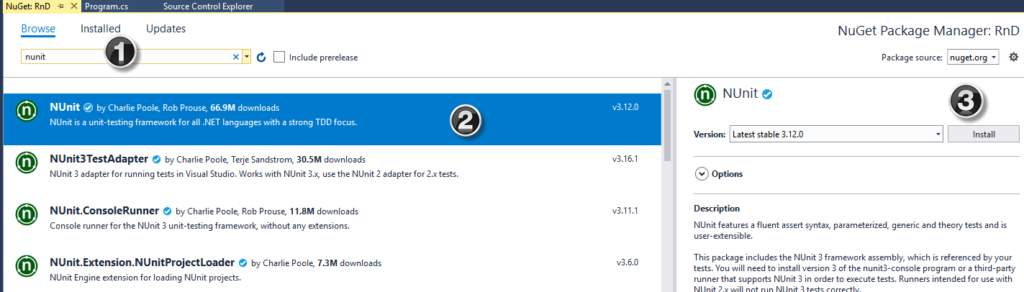
Step 1) Navigate to Project-> Manage NuGet Packages
Step 2) In the next window
Search for NUnit
Select the search result
Click Install
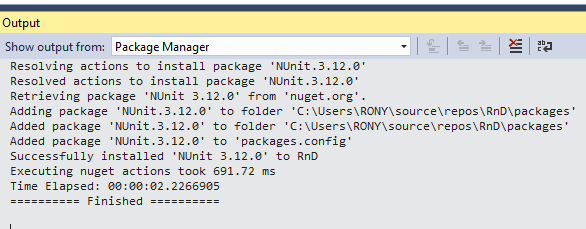
Step 3) The below message will appear once the installation is complete.
Steps to download NUnit Test Adapter
Please note that the below steps work only for 32-bit machines. For 64-bit machines, you need to download the ‘NUnit3 Test Adapter’ by following the same process as mentioned below.
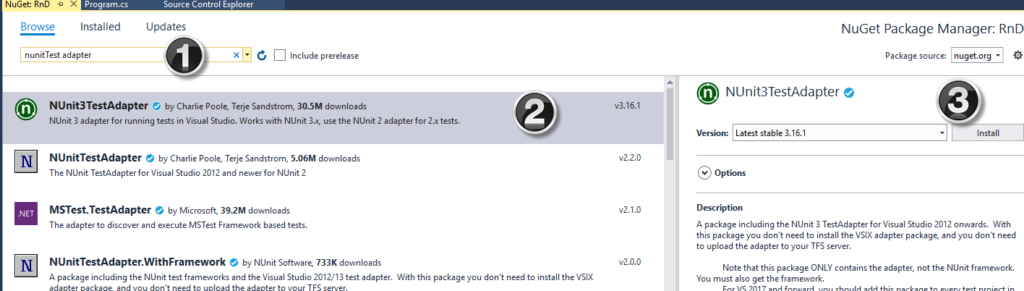
Step 1) Navigate to Project-> Manage NuGet Packages
Step 2) In the next window
Search NUnitTestAdapter
Click Search Result
Click Install
Step 3) Once install is done you will see the following message
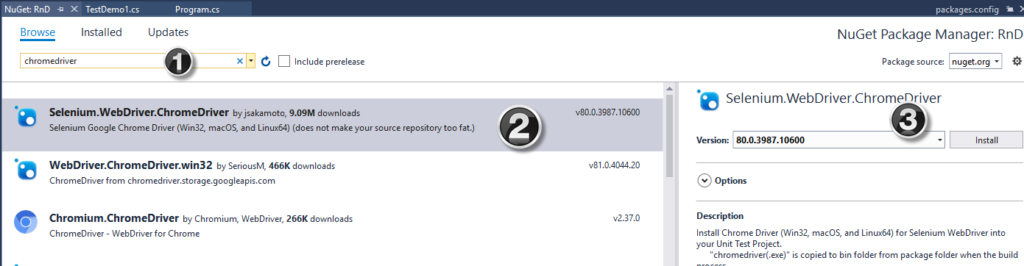
Steps to download Chrome Driver
Step 1) Navigate to Project-> Manage NuGet Packages
Step 2) In the next window
Search for Chromdriver
Select the search result
Click Install
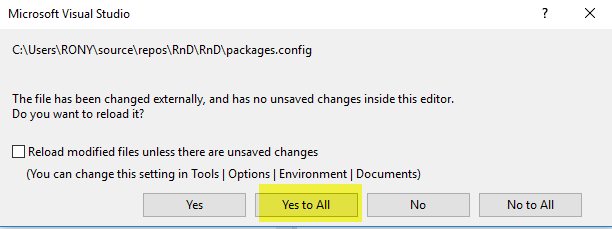
Step 3) System may asked for permission. Click on ‘Yes to All’
Step 4) The below message will appear once the installation is complete.
Selenium and NUnit framework:
Selenium with NUnit framework allows differentiating between various test classes. NUnit also allows using annotations such as SetUp, Test, and TearDown to perform actions before and after running the test.
NUnit framework can be integrated with Selenium by creating a NUnit
test class and running the test class using NUnit framework.
The below are the steps needed to create and run a test class using NUnit framework.
Steps to create a NUnit Test class in Selenium:
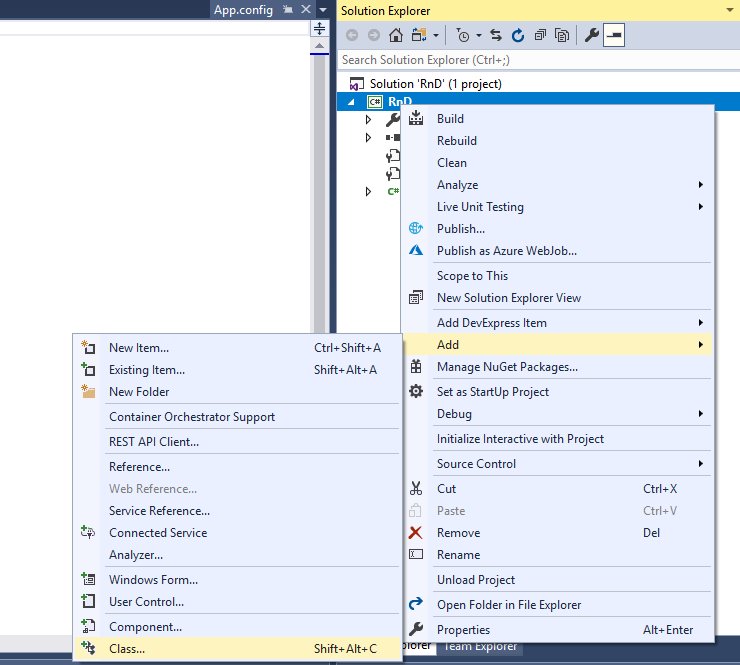
Step 1) In the Solution Explorer, Right clicked on project > Add > Class
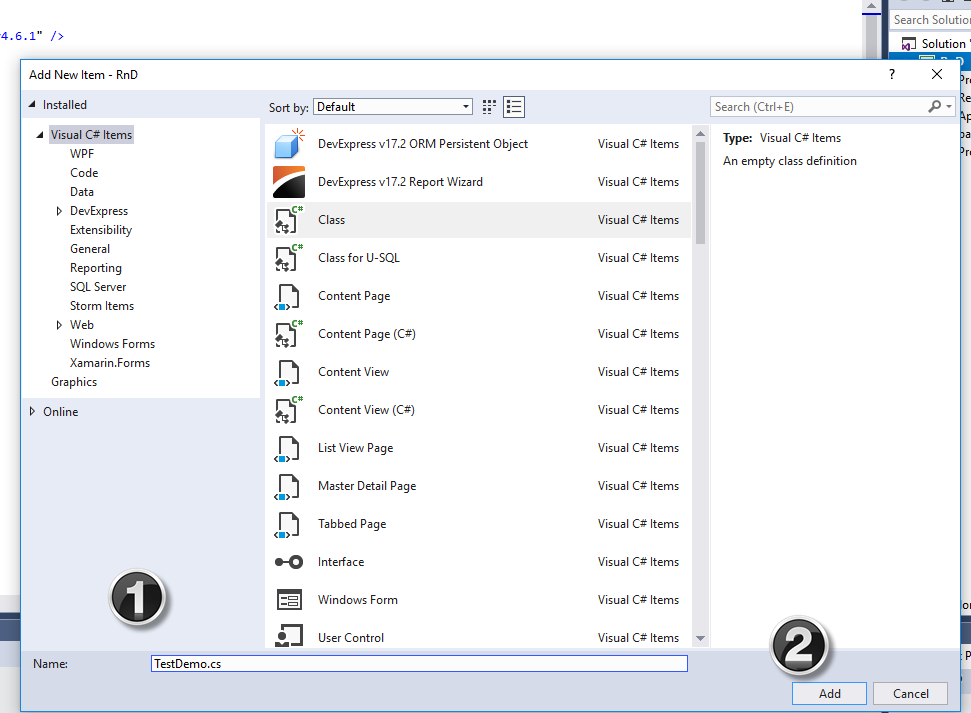
Step 2) Class creation window will appear
Provide a name to the class
Click on Add button
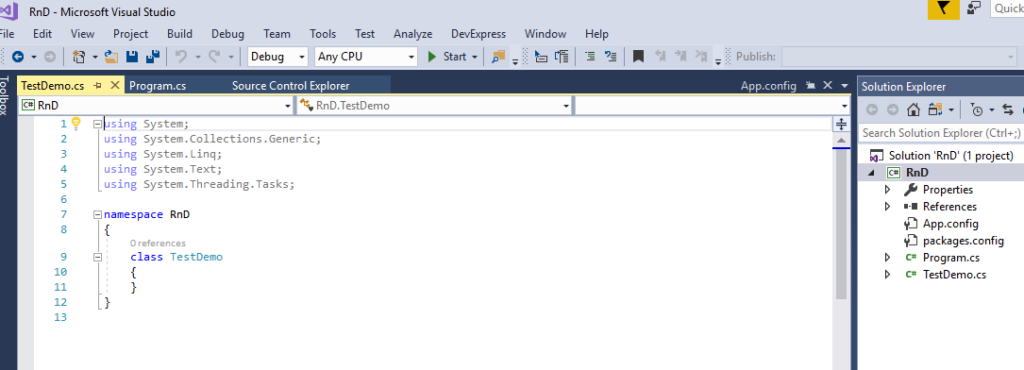
Step 3) The below screen will appear.
Step 4) Add the following code to the created class. Please note that you need to specify the location of ‘chromdriver.exe’ file during chrome driver initialization.
using System;
using System.Collections.Generic;
using System.Linq;
using System.Text;
using System.Threading.Tasks;

using OpenQA.Selenium;
using OpenQA.Selenium.Support.UI;
using OpenQA.Selenium.Chrome;


using NUnit.Framework;
using NUnit.Framework.Interfaces;
using NUnit;

namespace RnD
{
    [TestFixture]
    public class TestDemo1
    {
        public IWebDriver driver;

        [SetUp]
        public void Initialize()
        {
            driver = new ChromeDriver();
        }

        [Test]
        public void BrowserTest()
        {
            driver.Manage().Window.Maximize();
            driver.Navigate().GoToUrl("https://www.google.com/");
        }

        [TearDown]
        public void closeBrowser()
        {
            driver.Close();
        }
    }
}
Step 4) Click on ‘Build’ -> ‘Build Solution’ or keypress ‘Ctrl + Shift + B’
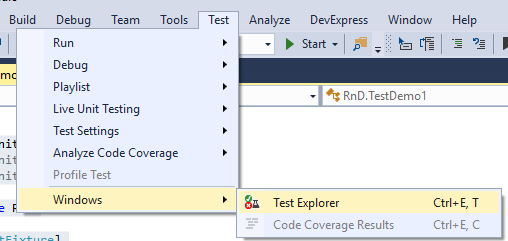
Step 5) Once the build is successful, we need to open the Test Explorer window. Click on Test -> Windows -> Test Explorer
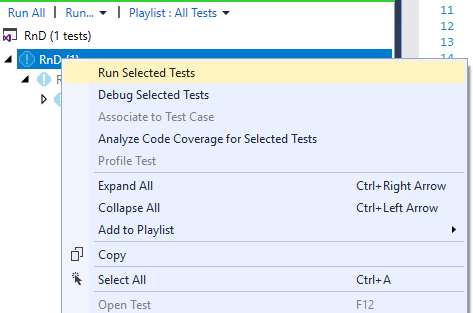
Step 6) Test Explorer window opens with the list of available tests. Right-click on Test Explorer and select Run Selected Tests
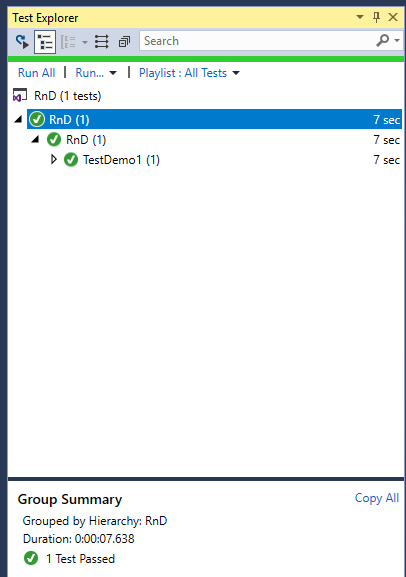
Step 7) Selenium must open the browser with specified URL and close the browser. Test case status will be changed to ‘Pass’ on the Test Explorer window.